
Introduction
An iPad does not have one universal lifespan. Apple's documentation states no fixed life or iPadOS support promise, so a fleet's answer depends on physical condition, battery health, software support, workload, security requirements, and repair economics.
A tablet that still powers on may already be a liability if it can't run required apps or meet security policy. Many IT teams struggle to tell the difference, and age-only rules tend to replace good devices early or keep bad ones too long.
This guide is for US organizations managing business iPads at scale. It covers how to evaluate, extend, replace, redeploy, and securely retire devices.
Key Takeaways
- An iPad that still powers on isn't automatically secure, compatible, or cost-effective.
- Weigh battery, performance, software support, apps, condition, and downtime together.
- Track each device from deployment to disposition instead of using an age-only rule.
- Build data sanitization and chain of custody into every retirement step.
What Determines an iPad's Lifespan in a Business Fleet?
Fleets deal with five different "lifespans," and they rarely end together:
- Physical: the device works and is intact
- Battery: capacity still supports a full shift
- Software and security: it receives updates and runs current iPadOS
- Operational: it handles the user's workflow
- Economic: keeping it costs less than replacing it
A warehouse iPad might hit its battery limit first. A lightly used executive iPad may outlast its software support while the hardware looks new.
Hardware condition and battery health
Cracked screens, worn charging ports, damaged enclosures, overheating, and heavy daily use all cut reliability. Battery is the most common wear item.
Apple says iPad batteries are designed to retain up to 80% of original capacity at 1,000 complete charge cycles, per Apple's battery guidance. Treat that as a design target rather than an automatic replacement trigger. On supported models, Settings shows maximum capacity and cycle count, though not every model offers it.
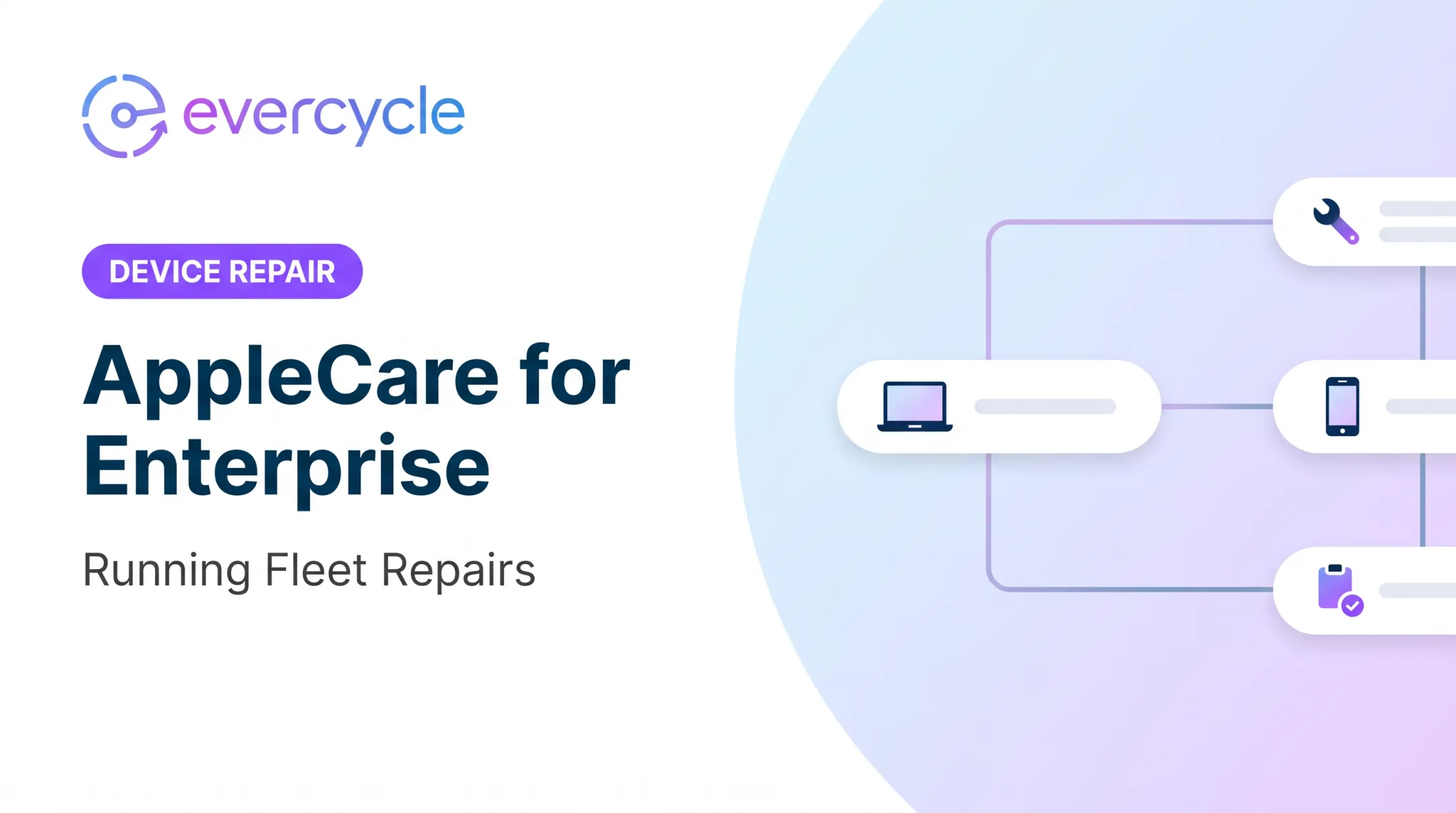
Coverage matters too. AppleCare+ provides battery service when capacity falls below 80% of original specifications, but that threshold applies only under the contract. Fleets still need their own cutoff.
Software support and security requirements
Apple's iPadOS compatibility guides are model-specific. For example, iPadOS 17 supported the iPad (6th generation), while the iPadOS 18 list starts at the 7th generation. That shows support transitions happen by model, not by a set number of years.
Hardware service is a separate clock. Apple says parts may be available for at least five years after distribution ends, possibly up to seven. Products are obsolete after seven years. Those timelines cover parts and service eligibility. They do not guarantee OS updates.

A device that can't take required updates or run supported business apps is unsuitable, even if it works fine.
Workload and deployment environment
Expectations should differ by role:
- Executive or light-use devices: gentle wear, but software support often ends first
- Shared frontline tablets: more handling, frequent charging, higher damage rates
- Warehouse and field devices: drops, temperature swings, and dust
- Kiosks and point-of-service: long uptime, constant charging
- Video, design, and data-collection iPads: performance limits arrive sooner
Apple's deployment material doesn't assign replacement ages to these roles, so set your own from usage data.
Fleet management and compliance needs
MDM enrollment, encryption, identity controls, and app support can all shorten a device's practical life. If a device can't enroll or meet policy, remove it from the fleet.
Compliance affects retirement timing as well. Under HIPAA, covered entities need procedures for final disposition of ePHI and for removing it before media is reused (45 CFR 164.310(d)(2)). The rule sets no device age, but it does dictate what must happen before an iPad moves on.
How to Know When a Fleet iPad Needs Replacing
Performance and user-experience symptoms
Watch for these symptoms:
- Slow app launches
- Freezes or crashes
- Poor multitasking
- Failed peripherals
- Unreliable connectivity
- Workflows that can't be completed
The key distinction is scope. One iPad with a bad app install is a software issue. The same symptoms across a cohort of same-model, same-age devices point to a lifecycle problem.
Battery and physical-condition warning signs
Use this checklist:
- Rapid drain or failure to hold a charge
- Unexpected shutdowns, including right after unplugging
- Slow charging or no charging
- Swelling or unusual heat
- Cracked screens or damaged ports
- Repeated hardware incidents
Apple tells users to stop using an iPad if the battery may be damaged, and says battery repair should be done by a trained technician. Swelling or heat means pull the device immediately.
Otherwise, a repair assessment beats instant replacement. A battery swap on a healthy device is often cheaper than a refresh.
Compatibility, security, and support triggers
Replacement is justified, even on a working device, when:
- The iPadOS version is no longer supported by your required apps
- A business app is blocked or unavailable
- The device lacks a needed security capability
- MDM enrollment fails
- The device no longer meets company policy
Cost, downtime, and productivity considerations
Compare the full picture: repair cost, replacement cost, loaner devices, shipping, configuration, support time, and employee downtime. No authoritative US figure for tablet downtime cost exists, so use your own help-desk and payroll data rather than borrowed numbers.
A practical replacement decision
- Verify the workload: what must this user do?
- Inspect hardware and battery: check condition and Battery Health data.
- Confirm software and security support: current iPadOS, apps, MDM.
- Review repair history and downtime: is this a repeat offender?
- Choose a path: repair, redeploy, replace, or retire.

How to Build an iPad Fleet Lifecycle and Replacement Policy
Establish an accurate fleet baseline
Record for each device:
- Model, serial number, purchase and deployment dates
- Assigned user or location
- iPadOS version and configuration
- Accessories and carrier status where relevant
- Repair history and battery indicators
- Current lifecycle status
Apple's MDM device-information queries return model name, model number, serial number, capacity, and battery level, which gives you a start on automating this.
Segment devices by role and risk
One rule for every iPad wastes money. Create categories for remote employees, executives, shared teams, field workers, kiosks, regulated workflows, and high-performance users. Each gets its own review triggers.
Set review points and replacement criteria
Schedule lifecycle reviews based on support status, performance trends, battery and repair data, app requirements, security policy, and planned business changes. No authoritative US enterprise iPad refresh interval exists, so ground any age-based checkpoint in Apple's current compatibility lists and your own data.
Define repair, redeployment, replacement, and retirement paths
Write clear decision rules:
- Return to service: passes inspection and meets role needs
- Move to a lower-demand role: fine for lighter work, no longer for heavy use
- Repair: cost is well below remaining useful value
- Spare: healthy but surplus
- Exit the fleet: unsupported, unrepairable, or noncompliant
Standardize configurations and require documented approvals for exceptions.
Improve visibility with lifecycle orchestration
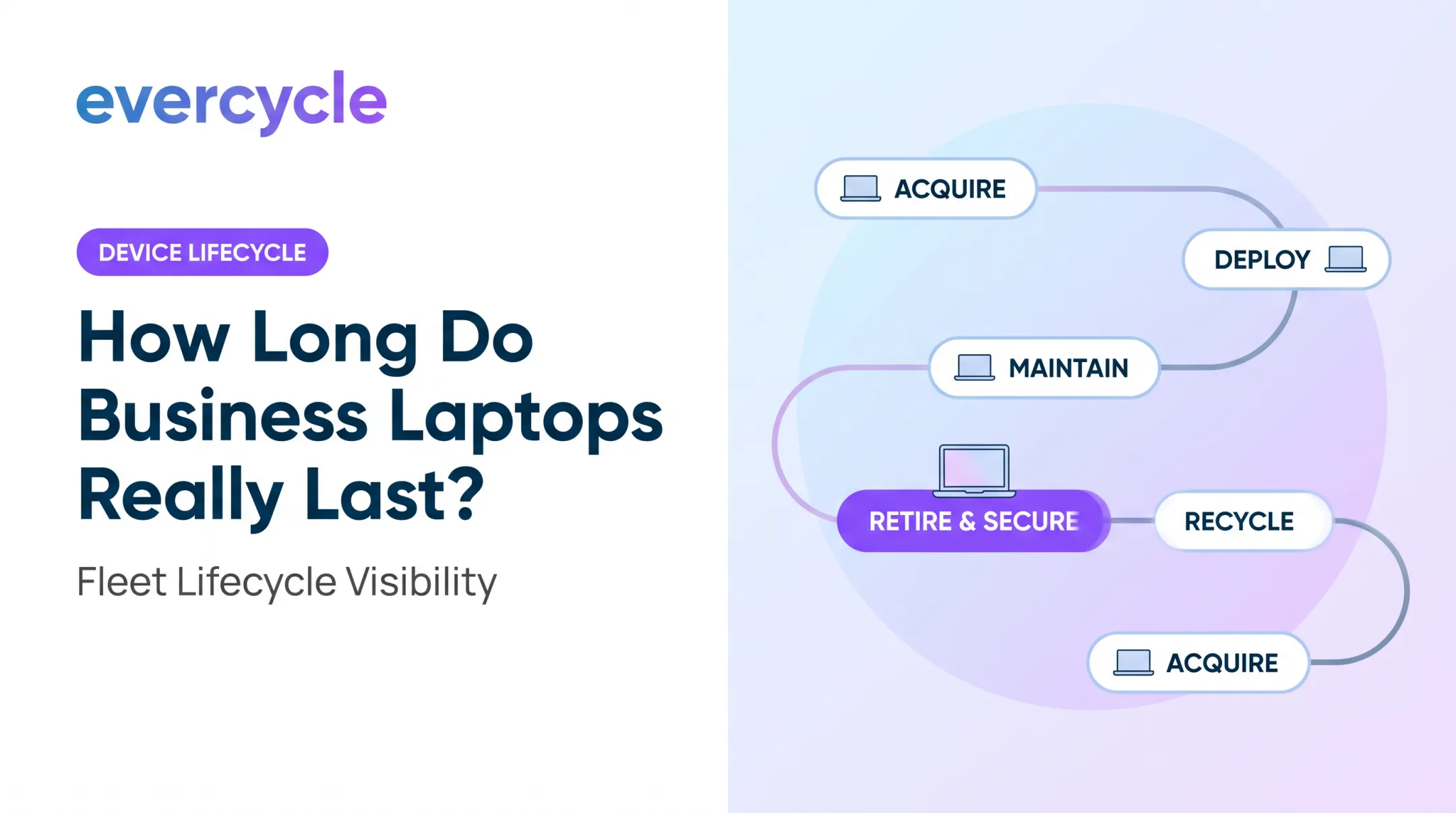
Spreadsheets and email threads break down at scale. Evercycle is an orchestration platform that connects enterprise asset data, existing systems, vendors, logistics, and ITAD partners. It reduces manual coordination and improves traceability across deployment, recovery, repair, and disposition.
Evercycle orchestrates the process. It doesn't physically process, repair, or transport devices; your existing providers do that work.
How to Extend the Useful Life of Business iPads
No practice guarantees extra years, but these help.
Physical protection
- Use protective cases and screen protection suited to the environment
- Store and transport devices safely
- Keep within Apple's limits: operating at 0-35 °C (32-95 °F), storage at -20 to 45 °C (-4 to 113 °F)
- Keep moisture out of openings
- Clean only as Apple directs; no household cleaners, aerosols, solvents, ammonia, abrasives, or hydrogen peroxide
Battery care
- Avoid excessive heat
- Use a compatible power adapter and USB-C cable
- Enable the 80% charge limit where supported (iPad Pro M4 and later, iPad Air M2 and later, iPad mini A17 Pro)
- Watch for abnormal behavior and send devices for professional service
Software and configuration
- Use MDM controls to choose software versions, pilot updates before production, and defer rollouts (Apple's documented guidance)
- Standardize configurations across the fleet
- Remove unneeded apps to cut conflicts and storage pressure
Utilization reviews
- Review health and usage on a regular cadence
- Move lightly used devices to secondary roles before performance or security limits make redeployment impractical
- Use remote condition assessment tools, such as the one Evercycle offers, to collect device data for those reviews
What to Do Before Retiring or Replacing an iPad
Secure recovery and data sanitization
- Confirm ownership of the device.
- Back up or transfer approved data.
- Sign out of the Apple Account and remove the device from the trusted-device list.
- Unenroll from MDM at the right stage; unenrollment removes managed accounts, configuration data, and possibly managed apps.
- Handle Activation Lock. On supervised devices, MDM must obtain the bypass code if Activation Lock is allowed.
- Sanitize with a documented process.

NIST SP 800-88 Rev. 2 (September 2025) defines Clear, Purge, and Destroy, including cryptographic erase. Method depends on risk, future use, cost, and environmental impact.
Releasing a device from Apple Business Manager is irreversible. Released devices must be erased and restored and can't be reassigned to device management.
Chain of custody and disposition records
Document every step across collection, shipping, vendor handoff, repair, refurbishment, resale, donation, or recycling:
- Asset identity (serial, asset tag)
- Each custody event with timestamps
- Sanitization status
- Final disposition result
- Certificates or reports where applicable
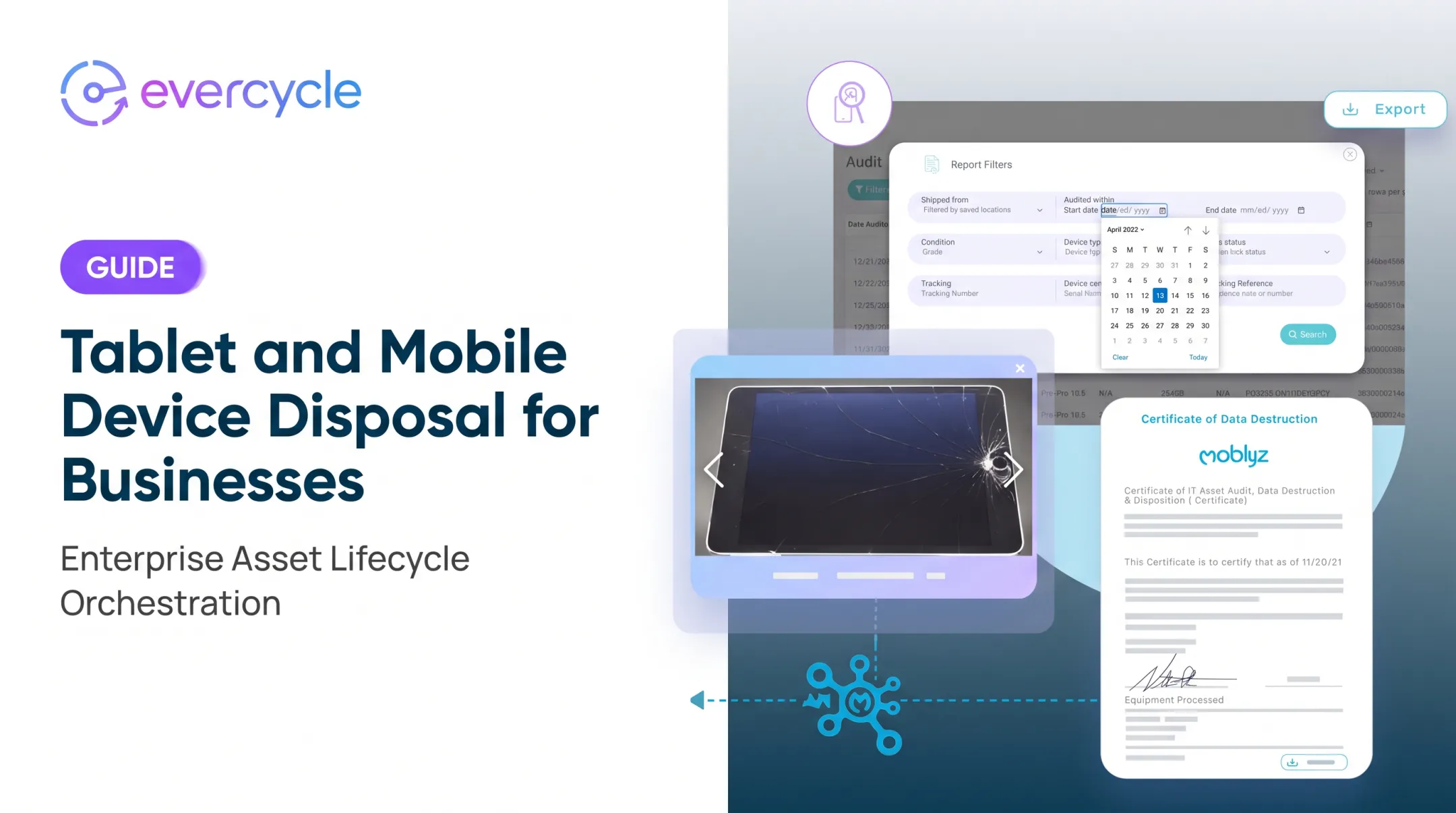
The e-Stewards standard calls for defined custody boundaries and recording sanitization by device. R2v3 Appendix B facilities can offer serial-level tracking. Evercycle's audit reports bring this together, including device journey, lock status, erasure results, and a Certificate of Data Destruction.
Reuse, resale, and responsible recycling
- Redeploy internally when devices still meet security and app needs
- Resell or use buyback for clean, working devices with residual value
- Donate to extend product life, per the EPA
- Recycle when reuse or repair isn't viable
The EPA recommends certified recyclers and names R2 and e-Stewards as the two accredited US standards. State rules vary: NCSL reports 25 states plus DC with statewide e-waste recycling laws, so check where your devices are located.
For iPad fleets, documented sanitization, custody, and a clear reuse or recycle path protect data and residual value while leaving an audit-ready lifecycle record.
Frequently Asked Questions
How many years will an iPad last?
It varies by model, workload, battery condition, software support, and physical treatment. Apple gives no fixed life or OS-support promise, and consumer usability differs from fleet readiness. Base refresh decisions on those factors, not a single year count.
How do you know when your iPad needs replacing?
Look for performance problems, battery or physical damage, unsupported software, app incompatibility, security gaps, poor repair economics, and recurring downtime. One factor rarely decides it; a pattern does.
Do iPads slow down with age?
They can seem to. Causes include aging hardware, battery wear, heavier apps, storage pressure, configuration issues, and network problems. Apple suggests keeping at least 1 GB free, so diagnose before replacing.
What is the typical replacement cycle for an iPad business fleet?
There's no universal interval. Set role-based review criteria using Apple support information, usage data, repair history, security needs, and total cost of ownership.
Is it better to repair or replace an aging iPad?
Compare repair cost against remaining useful life, service availability, downtime, security risk, and performance. If it fails a demanding role, it may still suit a lower-demand one.
How should a business retire and dispose of iPads securely?
Recover devices through approved channels, handle accounts, MDM, and Activation Lock, then sanitize and document chain of custody. Send them to qualified providers for reuse, resale, or recycling.